How to Set Up Bleed and Trim for Wholesale Stationery Printing
When it comes to professional stationery printing, few file preparation mistakes cause more production delays, reprints, and unexpected results than improper bleed and trim setup.
Whether you’re designing wedding invitations, greeting cards, personalized stationery, notecards, calendars, wrapping paper, direct mail pieces, or marketing materials, understanding bleed and trim is essential for achieving clean, professional results.
Many designers spend hours perfecting artwork only to discover that important design elements are cut off or white edges appear around the finished piece. Fortunately, these problems are easy to avoid once you understand the fundamentals of print production.
At StationeryHQ.com, we help thousands of graphic designers, stationery brands, wedding professionals, Etsy sellers, print brokers, and creative agencies prepare print-ready files every year. This guide explains everything you need to know about setting up bleed and trim correctly for wholesale stationery printing.
What Is Bleed in Printing?
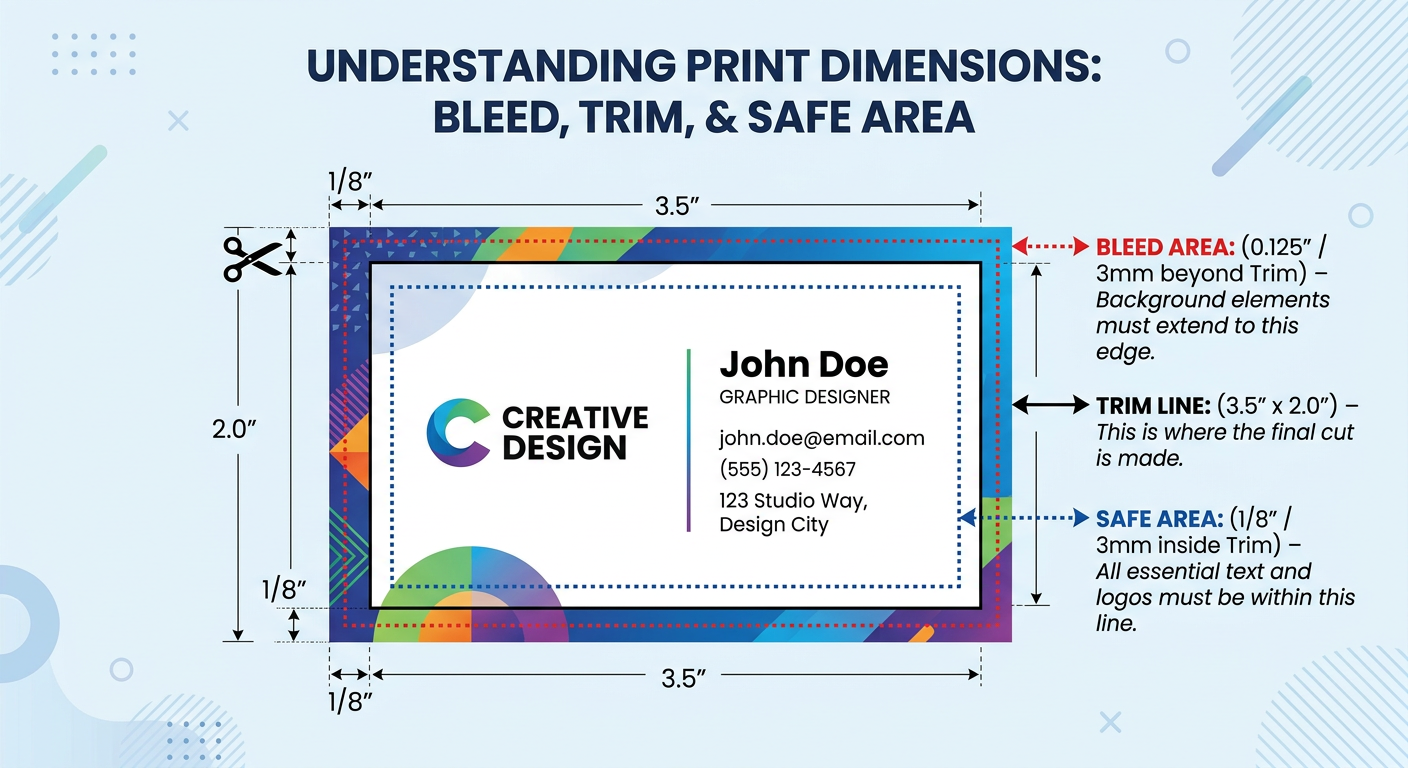
Bleed is the portion of artwork that extends beyond the final trimmed size of a printed piece.
After printing, cards, invitations, and stationery products are trimmed down to their finished size. The bleed area ensures that color, images, and background elements extend all the way to the edge after trimming.
Without bleed, even a tiny shift during trimming can result in unwanted white borders.
What Is Trim Size?
Trim size is the final finished size of your printed product after cutting.
Examples:
| Product | Finished Trim Size |
|---|---|
| A2 Flat Card | 4.25″ x 5.5″ |
| A6 Flat Card | 4.625″ x 6.25″ |
| A7 Invitation | 5″ x 7″ |
| 5×7 Greeting Card | 5″ x 7″ |
| Letter Sheet | 8.5″ x 11″ |
The trim line represents where the printer intends to cut the finished piece.
What Is the Safety Zone?
The safety zone is the area inside the trim line where important content should remain.
Important elements include:
- Names
- Addresses
- Logos
- Dates
- RSVP information
- QR codes
- Contact information
Keeping these items away from the trim edge helps prevent accidental cutting.
Understanding the Three Critical Lines
Every professional print file contains three zones:
Bleed Area
Extends beyond the trim line.
Trim Line
Represents the final cut size.
Safe Zone
Protects critical content.
Think of it like this:
Bleed┌──────────────────┐│ ││ Safe Area ││ Trim ││ │└──────────────────┘
Each area serves a specific purpose in the production process.
Why Bleed Matters in Wholesale Printing
Many wholesale stationery products feature:
- Full-color backgrounds
- Edge-to-edge photography
- Watercolor artwork
- Patterns
- Graphic elements
Without bleed, slight cutting variations can expose unprinted paper along the edge.
This issue becomes especially noticeable on:
- Dark backgrounds
- Solid color fills
- Full-bleed photography
Bleed eliminates this risk.
Standard Bleed Requirements
Most commercial printers require:
0.125″ (1/8″) Bleed on All Sides
For example:
Finished A7 Invitation:
5" x 7"
Add bleed:
5.25" x 7.25"
This larger document includes the bleed area that will be trimmed away during production.
Example: Setting Up an A7 Invitation
Finished Size:
5" x 7"
Bleed:
0.125" on each side
Document Size:
5.25" x 7.25"
Safe Area:
Keep critical text at least:
0.125" to 0.25"
inside the trim line.
This provides a comfortable margin of safety.
Common Bleed Mistakes Designers Make
Forgetting Bleed Entirely
The most common error.
Result:
White borders after trimming.
Placing Text Too Close to the Edge
Even if bleed is present, text can still be cut off.
Always maintain a safe margin.
Using Crop Marks Incorrectly
Crop marks help indicate trim locations but do not replace bleed.
You need both.
Extending Some Elements but Not Others
If a background reaches the edge, it must extend into the bleed area.
Partial bleed often creates inconsistent results.
Bleed Setup in Adobe Illustrator
Illustrator makes bleed setup simple.
Step 1
Create a new document.
Step 2
Enter finished size.
Example:
5" x 7"
Step 3
Enter bleed:
0.125"
on all sides.
Illustrator automatically creates bleed guides.
Step 4
Extend backgrounds and images beyond the trim line to the bleed guide.
Step 5
Export as PDF with bleed enabled.
Bleed Setup in Adobe InDesign
InDesign is one of the most widely used applications for stationery production.
During Document Creation
Specify:
Bleed:0.125"
for all sides.
During Export
Select:
Use Document Bleed Settings
when creating the PDF.
This ensures bleed is included in the final print file.
Bleed Setup in Canva
Canva has become increasingly popular among invitation designers and Etsy sellers.
Enable Bleed
Go to:
File → Show Print Bleed
This displays bleed guides.
Export Properly
Choose:
PDF Print
for the highest quality output.
Always verify that backgrounds extend fully beyond the trim area.
Bleed Setup in Procreate
Many stationery artists create artwork in Procreate before moving to print production.
When designing:
Add Extra Canvas Space
If your final card is:
5" x 7"
create artwork slightly larger to account for bleed.
Export at High Resolution
Maintain:
300 DPI
for professional printing.
Verify Final Dimensions
Before exporting, confirm the artwork includes the required bleed area.
Bleed for Folded Cards
Folded cards require special attention.
You must account for:
- Bleed
- Trim
- Fold location
- Safe zones
This is especially important for:
- Greeting cards
- Folded invitations
- Holiday cards
Professional templates can simplify setup.
Bleed for Wedding Invitations
Wedding invitations frequently include:
- Full-color backgrounds
- Floral artwork
- Watercolor designs
- Edge-to-edge printing
Bleed is essential for maintaining a premium appearance.
Luxury wedding stationery should never show unintended white edges.
Bleed for Greeting Cards
Greeting cards often feature:
- Photography
- Illustrations
- Decorative borders
Proper bleed setup ensures the final product appears polished and professionally produced.
Bleed for Personalized Stationery
Even simple note cards can benefit from bleed.
Examples include:
- Colored backgrounds
- Monograms
- Border treatments
- Decorative patterns
Any design element touching the edge should extend into the bleed area.
Understanding Trim Tolerances
No commercial printing process cuts every piece at exactly the same location.
Minor variation is normal.
This is why:
- Bleed exists
- Safe zones exist
- Designers should avoid thin borders
Very narrow borders near the trim edge can appear uneven after cutting.
Why Professional Designers Avoid Hairline Borders
A common beginner mistake is placing a border:
0.05"
from the trim edge.
Even tiny cutting variations can make the border appear uneven.
For this reason, many professional stationers avoid ultra-thin borders near trim lines.
Why Wholesale Printers Require Bleed
Wholesale production environments process thousands of jobs every day.
Standardized bleed requirements help ensure:
- Consistent quality
- Faster production
- Fewer reprints
- Better customer experiences
Files that include proper bleed move through production more efficiently.
Why Designers Choose StationeryHQ
StationeryHQ supports professional file preparation and printing for:
- Wedding invitations
- Greeting cards
- Personalized stationery
- Books
- Calendars
- Wrapping paper
- Marketing materials
- Direct mail products
Our team works with designers, agencies, print brokers, Etsy sellers, and stationery brands nationwide.
Manufacturing in California and Kentucky
StationeryHQ operates production facilities in:
- California
- Kentucky
This distributed manufacturing model helps provide:
- Faster shipping
- Reduced transit times
- Nationwide fulfillment
- Consistent production quality
Wholesale and Print-on-Demand Printing
StationeryHQ offers:
- Wholesale printing
- White-label fulfillment
- Print-on-demand production
- Shopify integrations
- Etsy seller fulfillment
- API integrations for larger brands
allowing designers to scale without managing inventory.
Frequently Asked Questions
What is bleed in printing?
Bleed is artwork that extends beyond the final trim size to ensure edge-to-edge printing after cutting.
How much bleed should I use?
Most commercial printers require 0.125″ (1/8″) bleed on all sides.
What happens if I don’t include bleed?
White borders may appear along the edge after trimming.
What is the safe zone?
The safe zone is the area inside the trim line where important content should remain.
Should text extend into the bleed?
No. Only background elements and artwork should extend into the bleed area.
Final Thoughts
Understanding bleed and trim is one of the most important skills in professional print design. Proper file setup ensures your invitations, stationery, greeting cards, and marketing materials print exactly as intended while minimizing production issues and delays.
Whether you’re creating wedding invitations, personalized stationery, holiday cards, direct mail campaigns, or branded collateral, following professional bleed and trim standards will help you achieve clean, polished, edge-to-edge results every time.
At StationeryHQ, we help designers and brands produce premium printed products with professional-quality file preparation, advanced digital printing technology, and nationwide fulfillment from facilities in California and Kentucky.

